Skip to Content

Note: The File Manager can also be accessed externally using SFTP clients like FileZilla or WinSCP.

If a file or folder is over 1GB, compress it into a .zip file on your computer, upload the .zip, then unarchive it inside the File Manager.
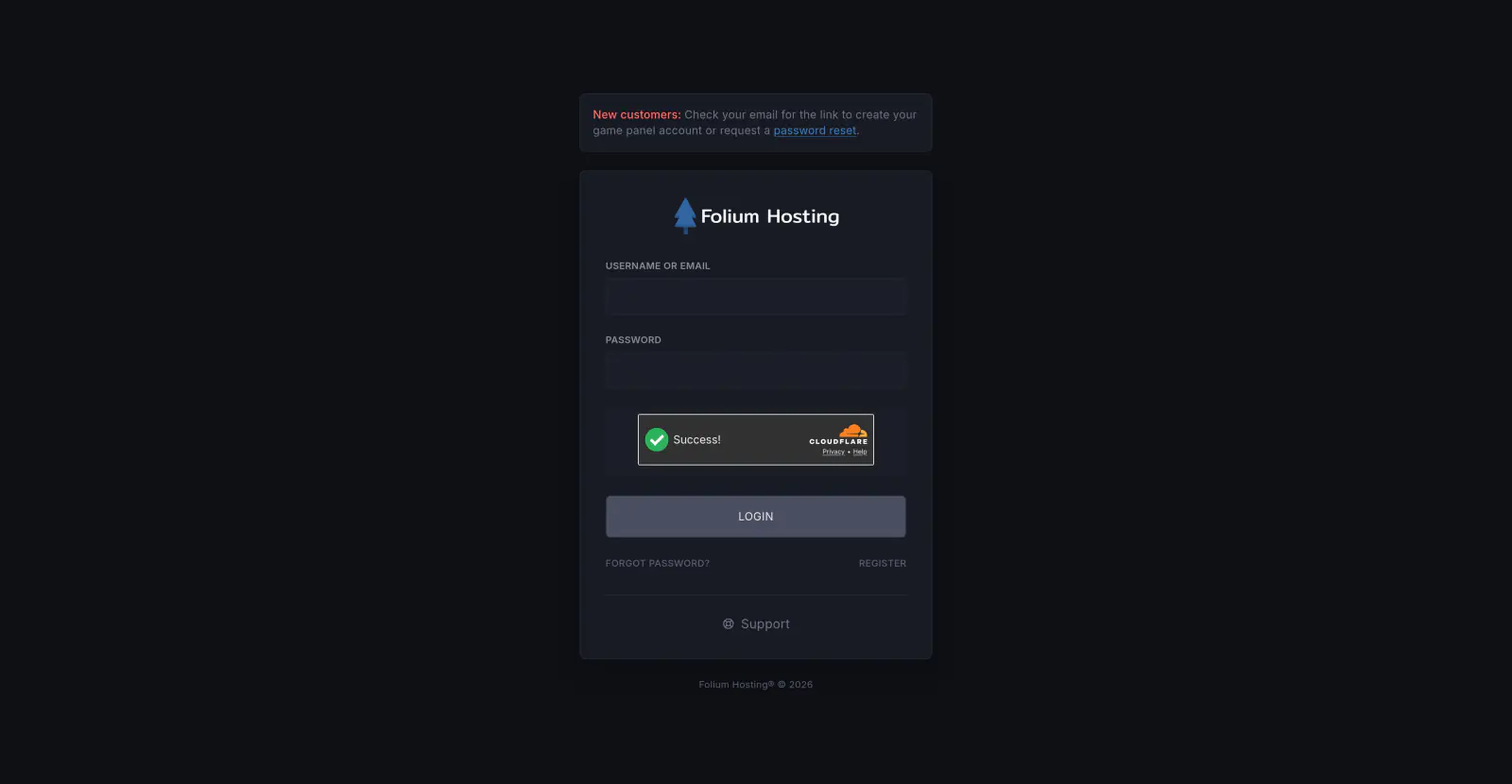
Log In to the Control Panel ↗


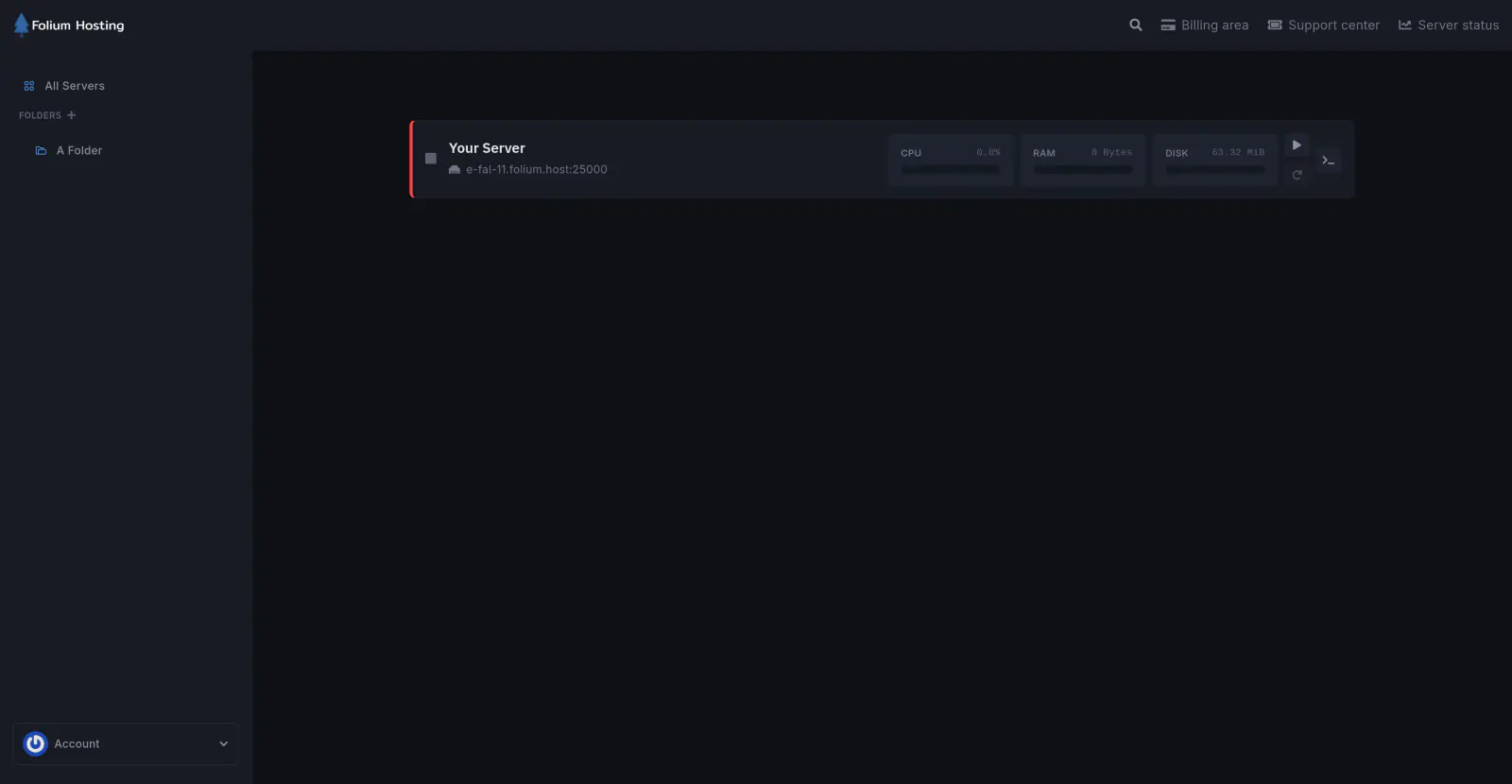
Select Your Server


Open the File Manager

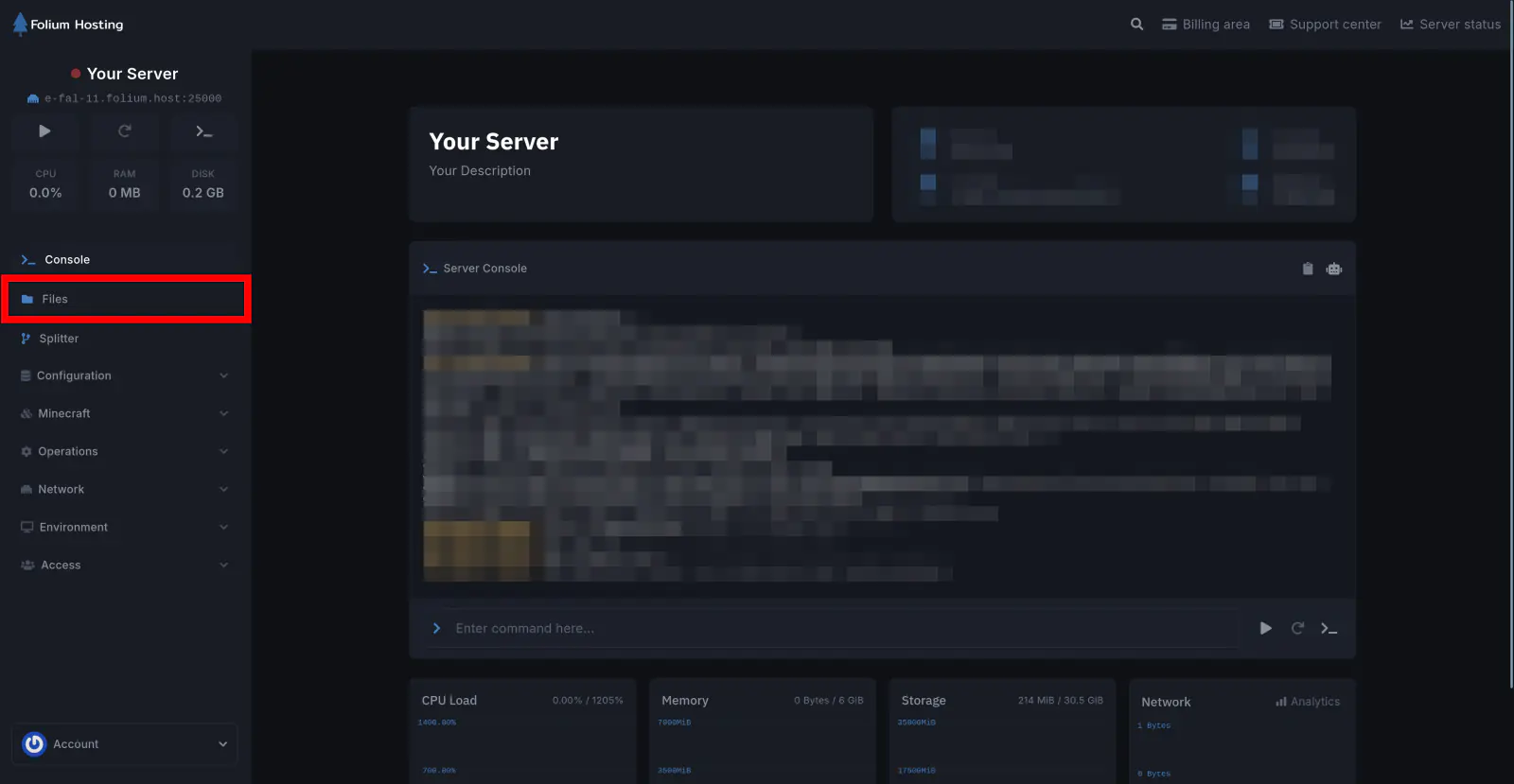
Click on the Files tab.


This is the File Manager tab. It contains all the files required for your server to run, including the server software jar, plugins/mods folder, and world folders (world, world_nether, world_the_end).

On this page, you can:

Search for a File or Folder

Type the file or folder name in the search box and press Enter.


Delete a File or Folder

Select the file or folder and click Delete.

This is irreversible. Unless you have a backup, the deleted file cannot be retrieved.


Move a File or Folder

Move a file or folder from one directory to another.


Archive a File or Folder

Compress a file or folder into a .zip format for easier downloading.


The Delete, Move, and Archive actions are only available when a file or folder is selected. To select, click the checkbox next to the file or folder.


Create a New Folder

Create a new directory in your server files.


Upload a File

Upload a file or folder from your computer to the server.


Create a New File

Create a new file directly in the File Manager.


Drag and Drop Files

Drag a file from your computer directly into the File Manager.


If any issues arise, contact us ↗.